FAQ for Integration
Brief introduction
Integration helps your bot connect to hundreds of applications in a few simple steps and create the most suitable workflow for your business. Here are some questions about Integration that we think can help you during your integration process.
FAQ for Integration
1. How can I use the Dialogflow in my chatbot?
To be able to use the Dialogflow feature inside BotStar, you will need to:
Enable Dialogflow in Integration (
Bot Builder>Integration)Have at least one Agent inside your Dialogflow account.
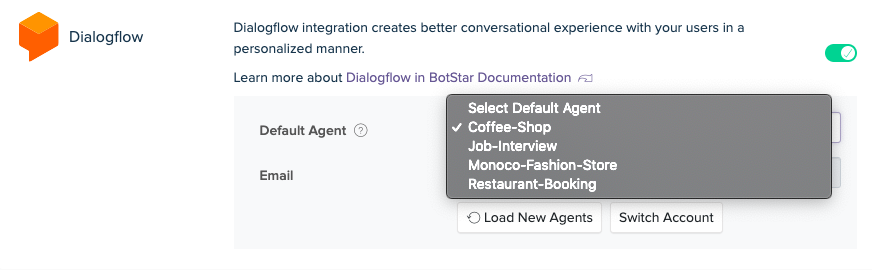
Note: For more detail about the Agent in Dialogflow. Please read this article.
2. Why can't I find the new Intent/ Agent which I just have created in my Dialogflow account when setting up the configuration in the Dialogflow block?
If you can't find your Intent/ Agent, please reload the BotStar page again or click the “Load new Agents" button in Integrations (Bot Builder > Integration) to reload the data.

The reason why we need to reload the data is that you may have created the Agents or Intent after integrating Dialogflow with BotStar, so the data haven't been transferred from Dialogflow to BotStar yet.
3. I have created a new agent inside Dialogflow, but the result when I test the “Confirmation block” is not like what I expected. The data is wrong. How can I fix that?
I would like to explain that this situation usually happens when this is the first time you have used the Dialogflow block inside BotStar.
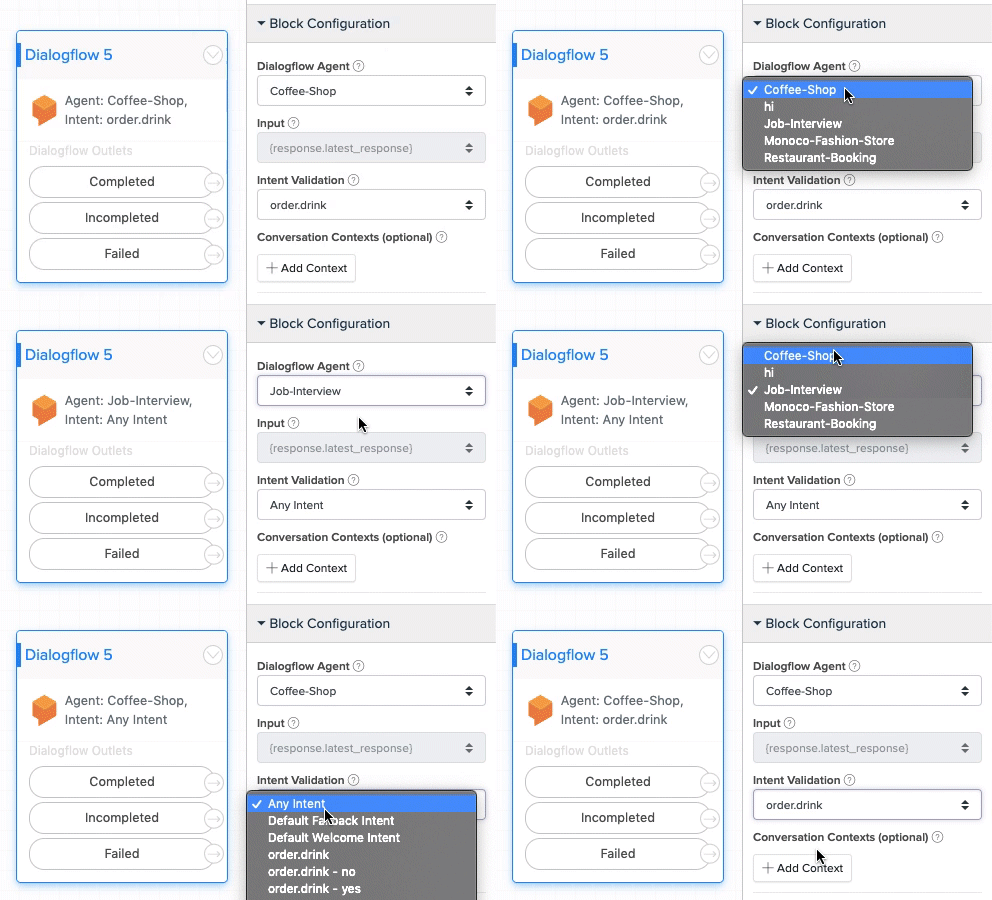
To fix this problem, please go to your Dialogflow block, then set them up again from the beginning. You can choose to delete that Dialogflow block or you will just need to change to another agent and then change back to the agent you want to set up.
4. I have followed the Documentation about Google Sheet but it is an error. Can you help me figure out the reason?
The issue might happen due to one of the below reasons:
The first reason is that the Header row (the first row) in the Google sheet is empty. In this scenario, you just need to fill that header row and try to set up the Google Sheet again.

The second reason is that The name of the Google Sheet worksheet is not in ASCII characters. Therefore, the system cannot load the data. You just need to change the worksheet name to Alphabet.
If you have any concerns, please feel free to leave a comment below or contact us through support@botstar.com. For more details on how we have helped our customers grow their business, you can view our use cases, blogs or join our BotStar community to learn and share new things 😊